
Visual Studio Code Markdown Preview (and Reasons Why it Might Not Be Working)
Markdown is now widely used in software engineering. AI-assisted development has increased adoption even further. This has made the Markdown Preview feature in Visual Studio Code and editors based on it extremely useful.
This post is short, but there are a couple of tips I’m going to include to help people looking for the same solutions that worked for me.
Press Ctrl+Shift+V to use Markdown Preview Mode. The same key combination is used to toggle between editing mode and preview mode. The GIF below shows pressing Ctrl+Shift+V to switch between Markdown editing and preview modes.
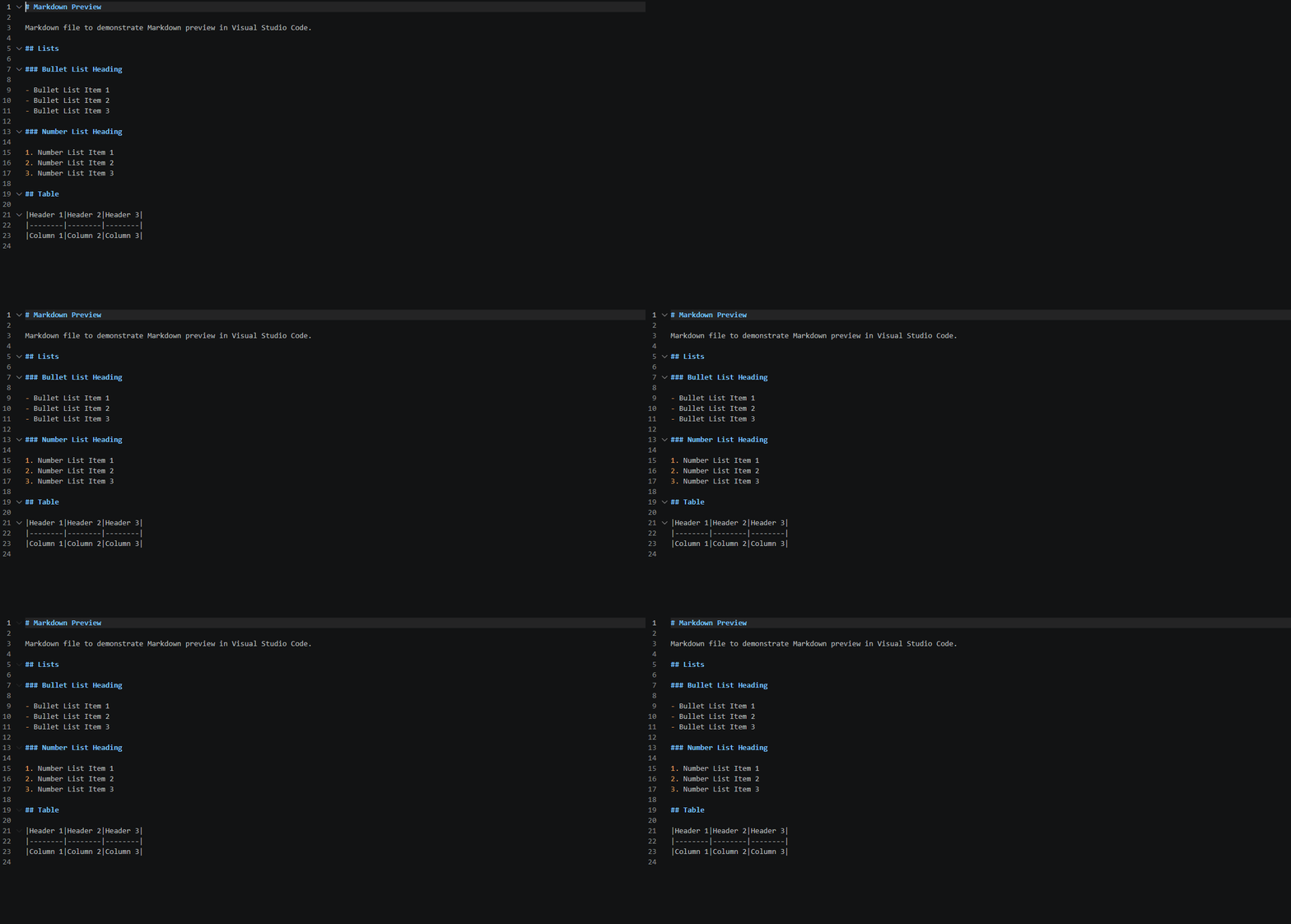
Toggle Markdown Preview with Ctrl+Shift+V
Here are a couple of reasons the keyboard shortcut might not work.
In order for Visual Studio Code to know you want to preview a Markdown file, the focus has to be active within the window of the Markdown file you want to preview. This can happen from things like the focus being on the command prompt in a terminal window, or having accidentally clicked on some other pane in the Visual Studio Code UI.
This was the case that I ran into. I observed other developers using Visual Studio Code to present documents written in Markdown at work, which is how I learned about the feature in the first place. I was able to use the preview shortcut at work, but when I tried at home it wasn’t working.
The issue turned out to be the Office Viewer extension. This extension had somehow gotten installed in Visual Studio Code on my home computer. I don’t remember how it got there. I likely installed it myself at some point for some experiment, or it’s possible it was installed automatically. Either way, the extension was conflicting with the default Markdown preview feature in Visual Studio Code. I removed the Office Viewer extension and the Markdown preview feature started working again.
For the purposes of troubleshooting, I tried installing the Office Viewer extension again while writing this post. After installing the extension and restarting Code, it appears the original keyboard shortcut conflict issue has been resolved. However, the extension did change my theme to something I didn’t really care for. I don’t need that extension, so I uninstalled it again.
The bottom line is check your extensions if Markdown preview isn’t working for you and you’re looking for reasons why.
Another issue that can cause this not to work is if the user has possibly changed the mapping of the default Visual Studio Code Ctrl+Shift+V keyboard shortcut.
If you’re on Windows or Linux, press Ctrl+K Ctrl+S to open the Keyboard Shortcuts Editor. Use Cmd+K Cmd+S on macOS. In that editor you can search for the keyboard shortcut combination by clicking in the search field and typing the text of the shortcut, e.g. “Ctrl+Shift+V”. Then you can check the keybinding and any conditions that may have been added to the shortcut.
One more final note that might be helpful in the case of keybindings: If you change a keybinding for whatever reason, you can right-click on the keybinding in the Keyboard Shortcuts Editor and click Reset Keybinding to restore it to its default settings. If Reset Keybinding is disabled, it means the keybinding is already in the default state.
This was another short post, but I believe it was worth posting to help readers A) Know about the Markdown preview feature in Visual Studio Code and B) troubleshoot why the feature may not be working.