
Visual Studio IDE Tip: Go to Definition and Go To Implementation
Visual Studio provides very useful shortcuts: Go To Definition (F12) and Go To Implementation (Ctrl+F12). These features let you quickly navigate between a definition, such as an interface, and an implementation, such as a class that implements an interface. This example uses interfaces, but this also works for abstract classes and virtual members. These two features can save a developer a significant amount of time traversing code. The larger the codebase, the more effective they become.
For these examples, I’m using Visual Studio 2026, but these features exist in earlier versions of Visual Studio as well. Here is a simple example we can use to demonstrate these features.
An ICustomerService interface that defines the contract with two methods:
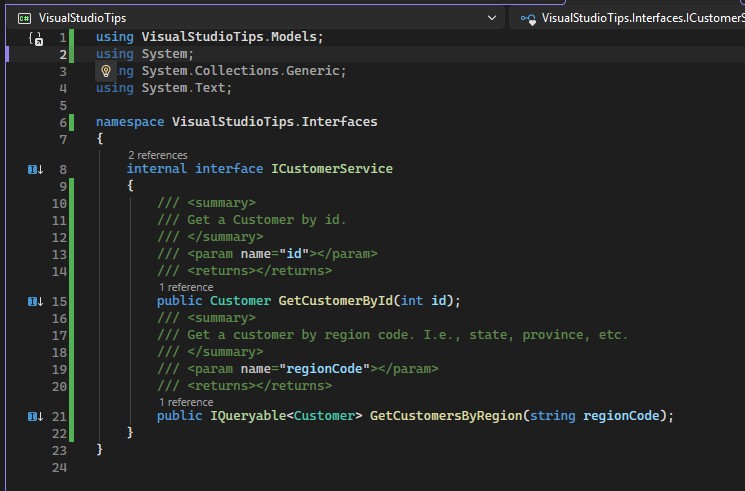
ICustomerService Interface
A CustomerService class that implements the ICustomerService interface:
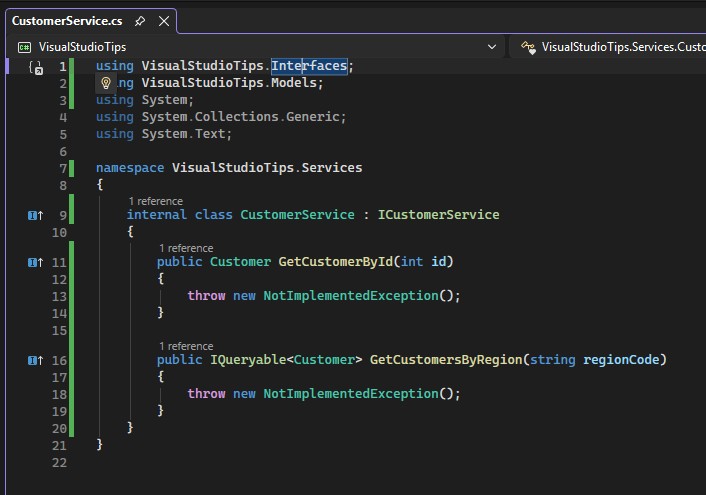
CustomerService Class
Note that the CustomerService class methods both throw the NotImplementedException. That’s ok for the purposes of this demonstration because we aren’t actually going to run any code. This post will only demonstrate how the specific navigation features work in Visual Studio.
Finally, let’s look at the Program.cs for the console application:
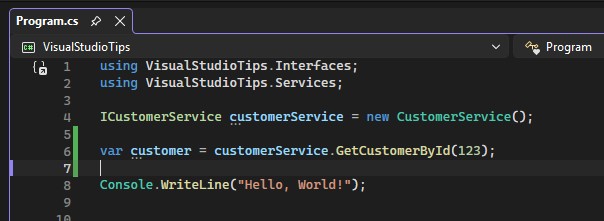
Program.cs
The console program is very simple. It just creates a new instance of the CustomerService class into a variable with type ICustomerService. In a real-world scenario, we might be getting the CustomerService class from a dependency injection service or a factory.
This is enough to demonstrate the features provided by Visual Studio. If I right-click on the interface in the Program.cs file, I get a context menu with several options.
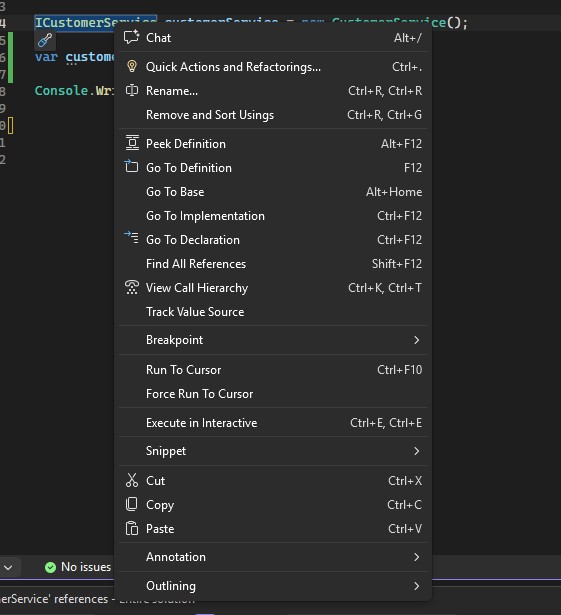
Context Menu from Right-Click on Interface
The two options that are relevant for this demonstration are Go To Definition and Go To Implementation.
Since I clicked on the interface name in Program.cs, I can click on Go To Definition (or press F12) to go to the location where the interface is defined in the code base.
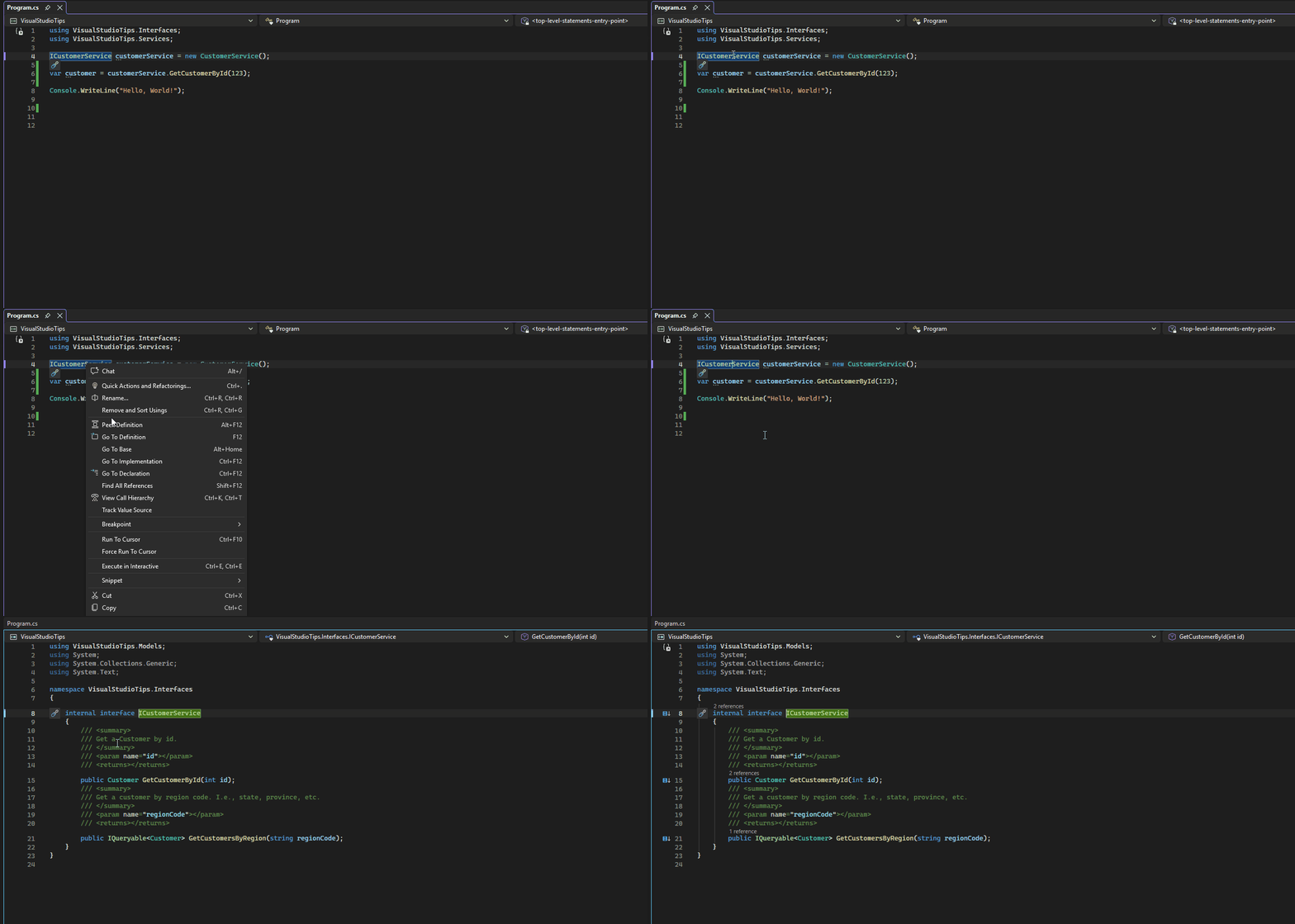
Using Go To Definition to Jump to Interface Definition
Going back to the Program.cs file, right-clicking on the interface again and clicking Go to Implementation (or pressing Ctrl+F12) will jump to the class that implements the interface.
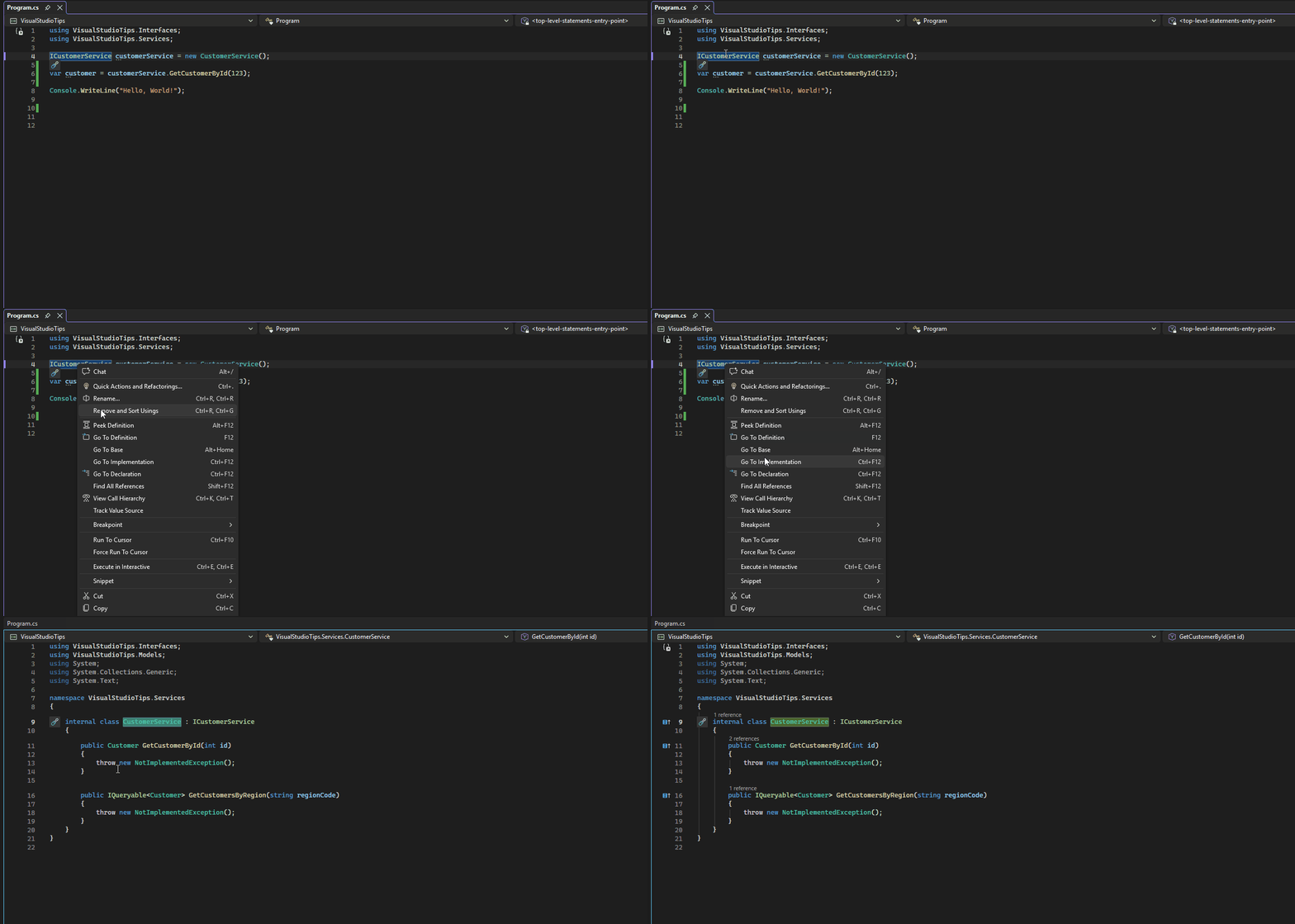
Using Go To Implementation to Jump to Class that Implements the Interface
In this example, only one class implements the interface. Visual Studio knows this and jumps directly to the implementing class.
In very large codebases, there may be several classes that implement the same interface. When there is more than one implementation, Visual Studio will return a list of matching implementations. To demonstrate this, I’ve added a new RegionService class, a new IRegionService interface, and implemented the IDisposable interface on both the CustomerService and RegionService classes.
The new RegionService class looks like this:
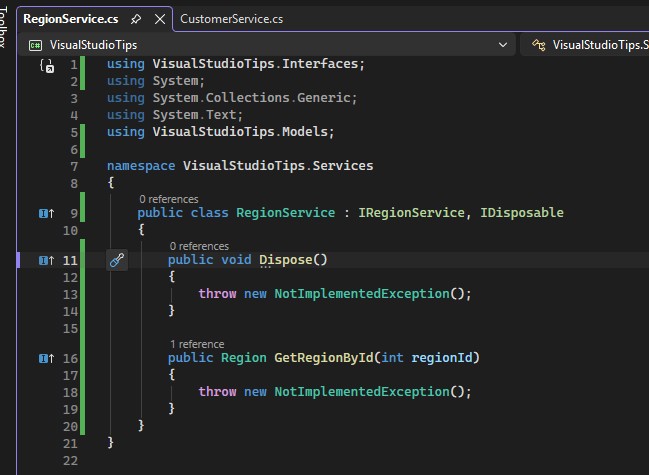
RegionService Class that Implements IDisposable Interface
The new CustomerService class now looks like this:
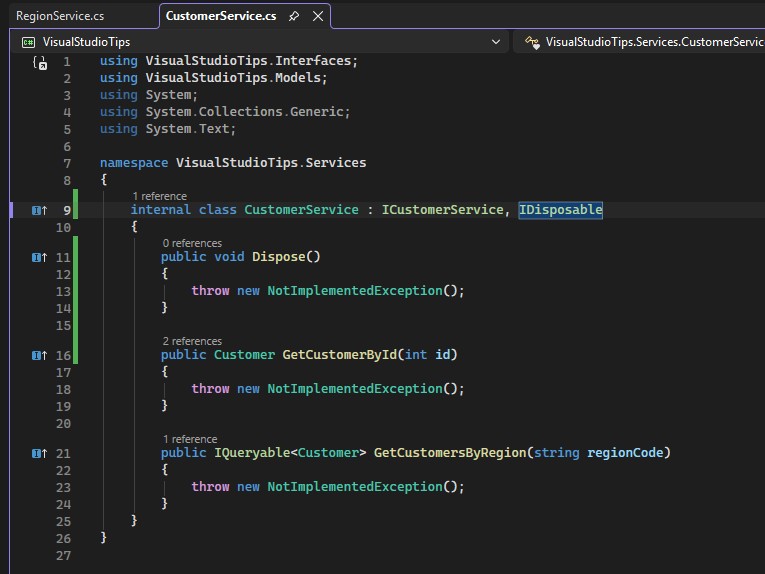
CustomerService Class that Implements IDisposable Interface
With either service class in the example, I can right-click on the IDisposable interface and click Go To Implementation. More than one class implements the IDisposable interface, so Visual Studio returns a list.
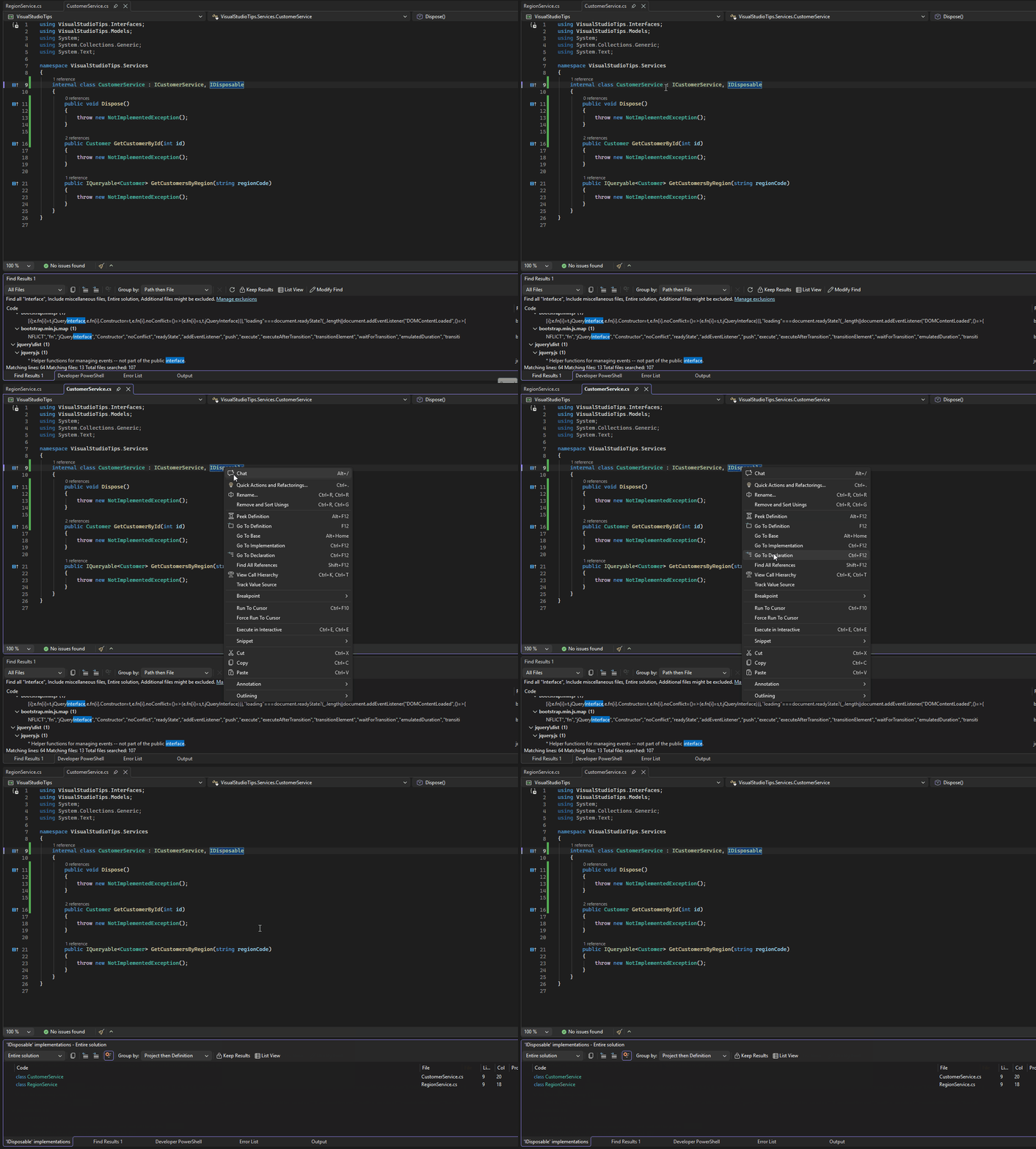
Go To Implementation Returns List When Multiple Classes Implement Interface
Clicking on each result in the list will open the corresponding file.
Using the context-menu options for Go To Definition and Go To Implementation can save a significant amount of time when traversing large codebases. Use it to quickly jump between abstract definitions and concrete implementations, or to find all classes that implement a specific interface. Even when a developer is familiar with a codebase and already knows which classes implement which interfaces, it’s still worth using these features to navigate between them, rather than using the Find in Files feature or scrolling through files in Solution Explorer, which are much slower options.