
Visual Studio IDE Tip: Using the Immediate Window
The Immediate Window is a very useful tool built into the Visual Studio IDE. It allows you to evaluate expressions, print variables, and run methods immediately during a debugging session.
For these examples, I’ve created a sample C# Console Application with .NET 10.0 and Visual Studio 2026.
Here is the source code.
using System.Runtime.CompilerServices;

var immediateVar = "This is a test";

var testCollection = new List<string>() { "one", "two", "three", "X", "Y", "Z", "A", "B", "C", immediateVar };

var placeHolderVariable = true;
The program doesn’t do anything other than assign some variables. We’ll set a breakpoint on the last line of main routine, where GetCollectionItemByIndex is called. Then we’ll look at what is possible with the Immediate Window.
I’ll set the breakpoint on the last line and let the program run until the breakpoint is hit.
For all of these examples, click the Immediate Window tab in the debugging session.
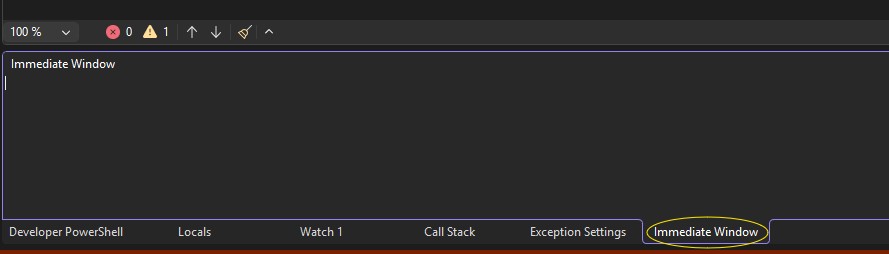
Immediate Window Tab.
Printing a variable in the Immediate Window is very simple. Just type the name of the variable into the Immediate Window and press Enter. I’ll use the immediateVar variable for this example.
I will click into the Immediate Window, and type immediateVar. Visual Studio auto-complete engages as I type. Once I’m done typing the variable name, I can press Enter. The value of the variable is immediately printed on the next line.
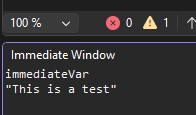
Value of variable printed to Immediate Window output.
Printing a variable is similar to using a watch, but doesn’t require creating a watch when one might not be needed.
The Immediate Window also supports evaluation of expressions. This can be helpful for further understanding the state of the program.
I’ll type immediateVar.GetType() into the Immediate Window. The information from the call to GetType() is eventually returned.
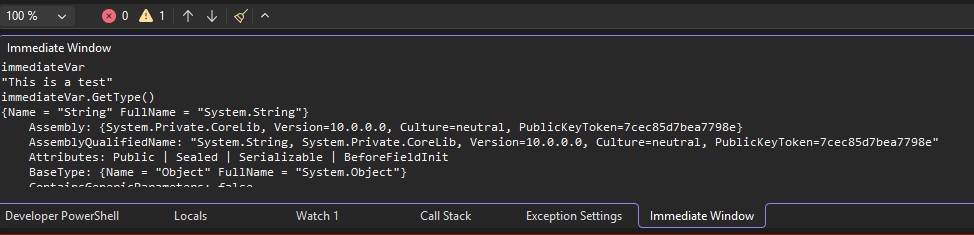
Results of immediateVar.GetType() printed to Immediate Window output.
The full result isn’t shown here, but a significant amount of information was returned to the Immediate Window from the result of calling GetType().
I have found that a very helpful use case for the immediate window is to evaluate the contents of a collection. For example, I might want to quickly find out if a collection contains a specific value during a debugging session. I could create a watch on the collection variable, expand the collection and scroll through every item, but it’s much easier to check this using the Immediate Window.
Let’s use the testCollection variable as an example. The sample code only defines a hard-coded list of 10 items, but if this were a real-world application, a collection may be loaded from a database or some other data source, and could potentially contain hundreds, thousands, or even hundreds of thousands of items.
NOTE: When a C# console application is created in Visual Studio 2026, LINQ is included by default. If you are using an older version of Visual Studio, then you may need to add a using statement to import LINQ (if it isn’t already included) for commands like this to work.
Using the testCollection variable as an example, I can run a LINQ query like the following into the Immediate Window to check if the collection contains a specific value:
testCollection.Where(x => x.Contains("Y")).Any();
Because the collection contains an item with the value “Y”, a value of true is printed to the Immediate Window.
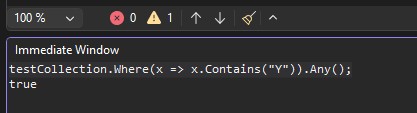
Item with the queried value found in the collection.
I’ll run this statement to show the results for a value that does not exist in the collection:
testCollection.Where(x => x.Contains("Q")).Any();
And the Immediate Window shows the results of the call to Any() that the value does not exist in the collection:
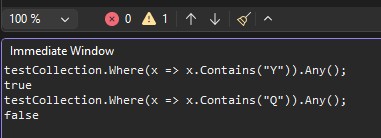
Item with the queried value not found in the collection.
The ability to evaluate expressions like this is one of the most powerful use cases for the Immediate Window, and can save a significant amount of time when debugging.
This is a good time to talk about clearing the Immediate Window. It is sometimes nice to clear a session and start over. To do this in the Immediate Window, right-click inside the Immediate Window and select “Clear All” from the context menu. This will clear the Immediate Window.
Your previously run statements can still be accessed by using the up and down arrows to scroll through the list of commands used during the session.
NOTE: Be careful when executing methods in the Immediate Window. These methods will run exactly as they would during normal program execution. For example, if you run a Delete() method that deletes a row from the database, it’s going to run that method exactly as it would during normal program execution and will delete the row. As always, exercise best practice and debug connected to a test environment.
Finally, the Immediate Window can be used to run methods. We’ve actually already seen this in the earlier example where the GetType method of immediateVar was called. Let’s try running another method. I’ll type the following into the Immediate Window to add a new item with the value “NEW” to the collection:
testCollection.Add("NEW");
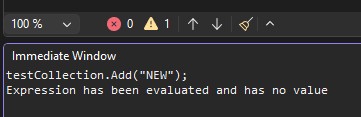
Expression has been evaluated and has no value message returned from execution.
In this case, the Immediate Window returns the response “Expression has been evaluated and has no value”. This is because the Add method doesn’t return anything.
To see if the value was actually added, we need to run another statement. My testCollection List variable is small, so I could just type testCollection and let the Immediate Window print the entire collection. In a real-world debugging scenario though, the collection could contain a significant number of items, so I’m going to run another query for just the specific item I’m looking for. I’ll type the following into the Immediate Window and press Enter:
testCollection.Where(x => x.Contains("NEW")).Any();
The result of the call is true, reflecting that the new item has been added:
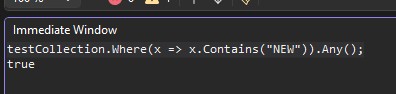
Result of call to Any() showing the new item was added to the collection.
In this case, I can also type testCollection.Last();, which shows me the output “NEW”, the value of the newly added item.
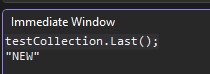
Result of call to testCollection.Last() showing the value of the new item.
I hope this short post has demonstrated that the Immediate Window is a powerful tool that can be extremely helpful for debugging. It’s useful for printing variable values, can be extremely helpful in evaluating variables that represent large collections, and can even be used to immediately run methods. I hope this quick tip helped you understand how to use the tool for more effective debugging.
For more information, refer to Use the Immediate window documentation from Microsoft.