
Visual Studio IDE Tip: Jump To Matching Code Delimiter
A very useful keyboard shortcut in Visual Studio IDE is the shortcut for jumping to a matching code delimiter. Ctrl + ] keys for C# and the Ctrl + Shift + Up/Down arrow keys for VB. This shortcut can be used to jump to matching code delimiters, like matching curly braces in C# or matching If/EndIf blocks in Visual Basic.
This can be useful if you have a large block of code and want to find the end of the block, the end of an if block, the beginning of an else block, jump to the beginning of a block, etc. There are many reasons a developer might want to do this. Perhaps you need to add code before a block begins, or jump to an else block to add something in the else part of the condition, or add a new method at the end of a large class. This is a shortcut that I use often and it can really help boost productivity by minimizing unnecessary scrolling.
It’s important to note that the location of the cursor affects how the shortcuts work. For example, if your cursor is on the start of an open parentheses, then the shortcut will jump to the closing parentheses. If the cursor is on a curly brace, then the shortcut will jump to the closing curly brace. Getting used to how and where the cursor must be positioned just takes a little getting used to, but the shortcut is easy to learn with just a few minutes of practice.
Here’s an example in C# using Ctrl + ]
![C# Example Showing Jump Ctrl + ] to Find Matching Delimiter](/images/visual-studio-ide-tip-jump-to-matching-delimiter/c-sharp-jump-to-matching-delim.gif)
C# Example Showing Jump Ctrl + ] to Find Matching Delimiter
Here’s an example in Visual Basic using Ctrl + Shift + Up/Down arrows.
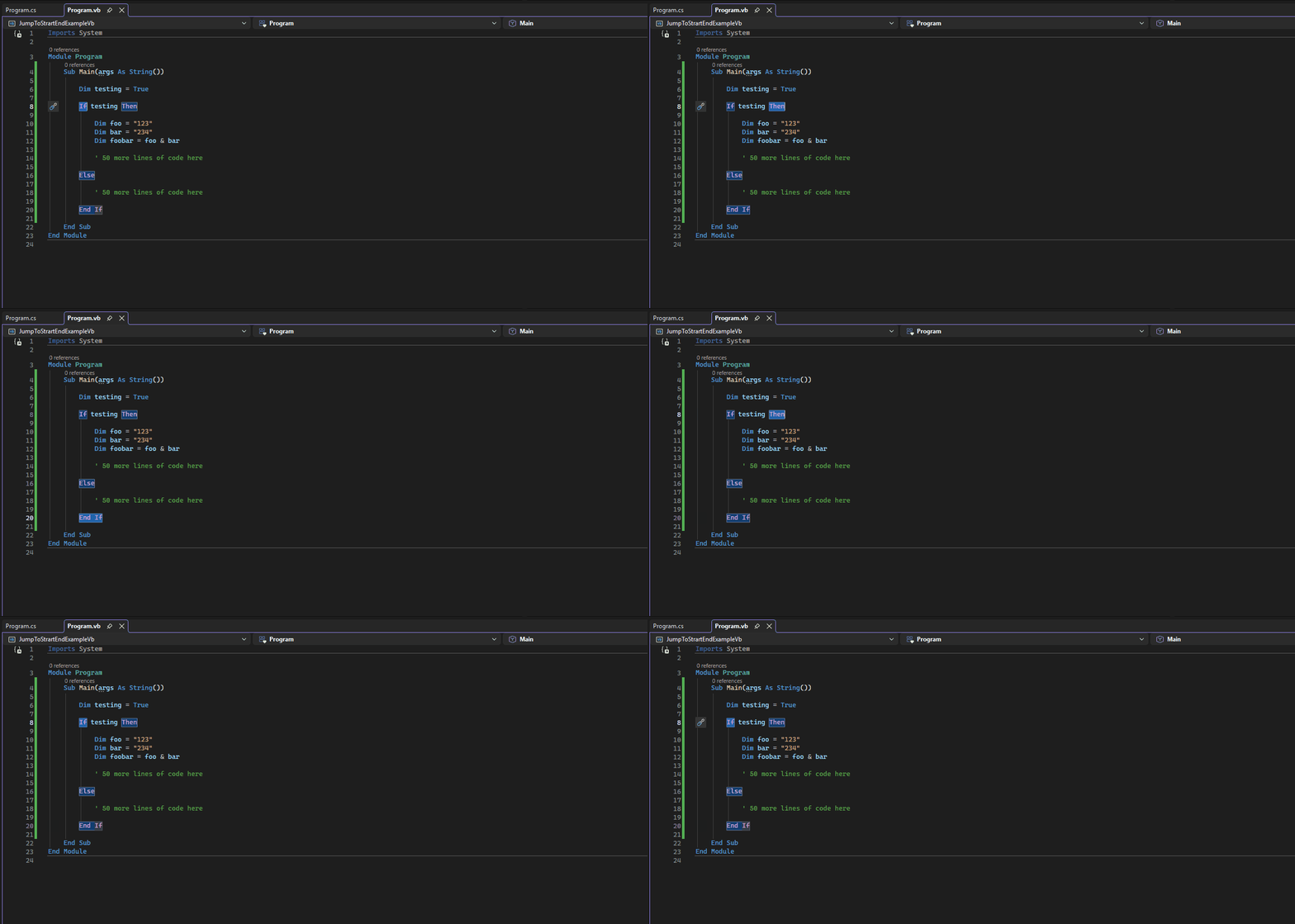
VB Example Showing Jump Ctrl + Shift + Up/Down Arrows to Find Matching Delimiter
My philosophy for software development has always been “work smarter, not harder”. Knowing how to use my tools in the most effective way is a large part of this philosophy. If there are out-of-the-box features like this that already exist and I can leverage, I’m absolutely going to use them. These shortcuts are simple ways to use the IDE effectively for quickly and efficiently navigating code. Learning how to use available shortcuts in Visual Studio, or any IDE or text editor, is definitely worth doing.