
Using the Windows Event Viewer to Debug .NET Applications running on Windows
There are times when something goes wrong with an application on Windows. Oftentimes, despite your best intentions to implement proper exception handling and logging, you may be left trying to figure out a 500 server error without very much information to start with. Maybe the application is crashing before your logging framework is initialized, or maybe something is causing an error preventing your application from starting at all. This is where the Windows Event viewer can sometimes be very useful. It isn’t always going to have the answer, but it’s definitely a place that anyone developing applications for Windows should get into the habit of looking at.
Oddly enough, I wrote a post on Debugging .NET Software Applications earlier this month. I briefly mentioned the Windows Event Viewer in that post. Not even a month later, I’ve been working on a project at work where the Event Viewer has been an indispensable tool for debugging a problem at application startup. I’m going to try to simulate something similar in my own personal environment so I can provide a concrete example. Before we get to that, let’s start with some basics.
The Event Viewer is where Windows logs system information. Windows categorizes these events into four main categories: Application, Security, Setup and System. There are other items in Event Viewer, such as Forwarded Events and Applications and Services logs, but for this post, we’re going to focus mainly on the Application category. As a software developer, this is typically where I find the most useful information when debugging errors with .NET applications.
The Event Viewer should be checked when things like the following are occurring:
- An application fails to initialize.
- Production errors are returning generic responses.
- Windows services are crashing.
- IIS/ASP.NET Core issues where nothing is reaching custom application logs.
Accessing the Event Viewer is easy. Just type “event viewer” in the Windows search bar and click it in the results.
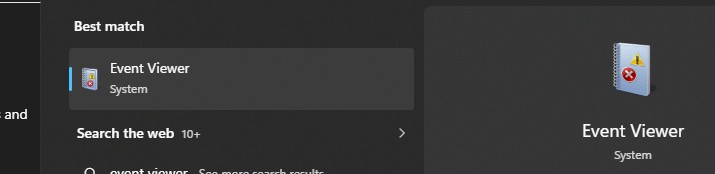
Event Viewer in Search Results
The Event Viewer will open and default to the Overview and Summary page
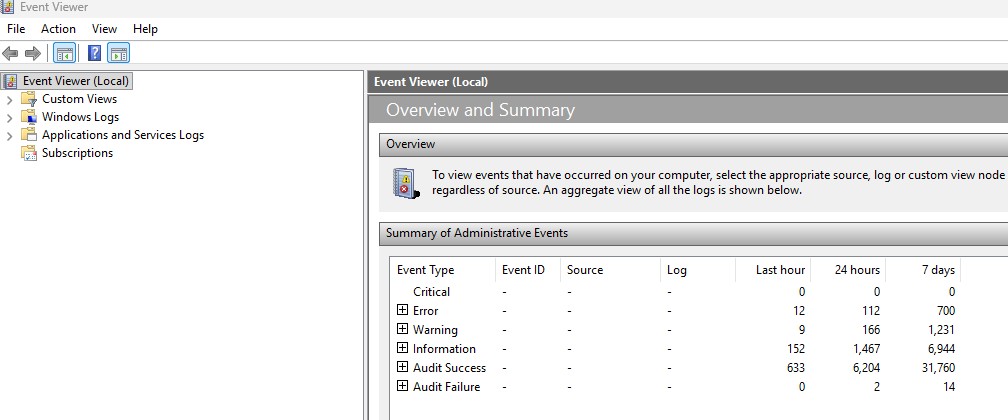
Event Viewer Overview and Summary Page
Expand the Windows logs section and click on Application to access the Application logs.
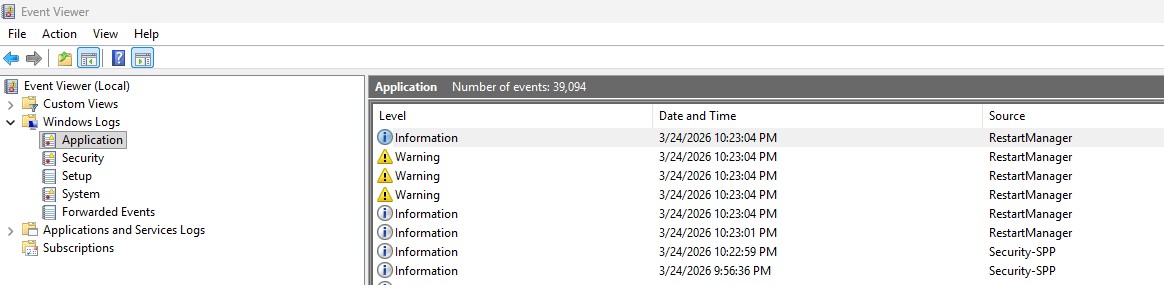
Event Viewer Application Logs
Now that we know how to access the Event Viewer, let’s look at a real example of how it can be used to debug .NET application issues. I’m going to use the ASP.NET Core web application that I wrote for part 1 of my post on Broken Access Control for this example.
What I want to do in this case is purposefully add something that will cause the application to fail at startup. The application happens to have an AppDbContext.cs class that defines the database context. That class looks like this:
using Microsoft.EntityFrameworkCore;
using System;
using System.Collections.Generic;
using System.Linq;
using System.Text;
using System.Threading.Tasks;
using OwaspTopTen.Models;

namespace OwaspTopTen.Services
{
    public class AppDbContext : DbContext
    {
        public DbSet<Customer> Customers { get; set; }
        public DbSet<UserCustomer> Usercustomers { get; set; }

        public AppDbContext(DbContextOptions<AppDbContext> options)
            : base(options) { }
    }
}
I can put some code to throw an exception in the body of the AppDbContext constructor function. After the change, the code looks like this:
using Microsoft.EntityFrameworkCore;
using System;
using System.Collections.Generic;
using System.Linq;
using System.Text;
using System.Threading.Tasks;
using OwaspTopTen.Models;

namespace OwaspTopTen.Services
{
    public class AppDbContext : DbContext
    {
        public DbSet<Customer> Customers { get; set; }
        public DbSet<UserCustomer> Usercustomers { get; set; }

        public AppDbContext(DbContextOptions<AppDbContext> options)
            : base(options) { throw new Exception("Hey something is wrong here"); }
    }
}
For clarity, the extra code that I added is:
throw new Exception("Hey something is wrong here");
I’ll try to run the application after making the change.
The application starts and I have already logged in.
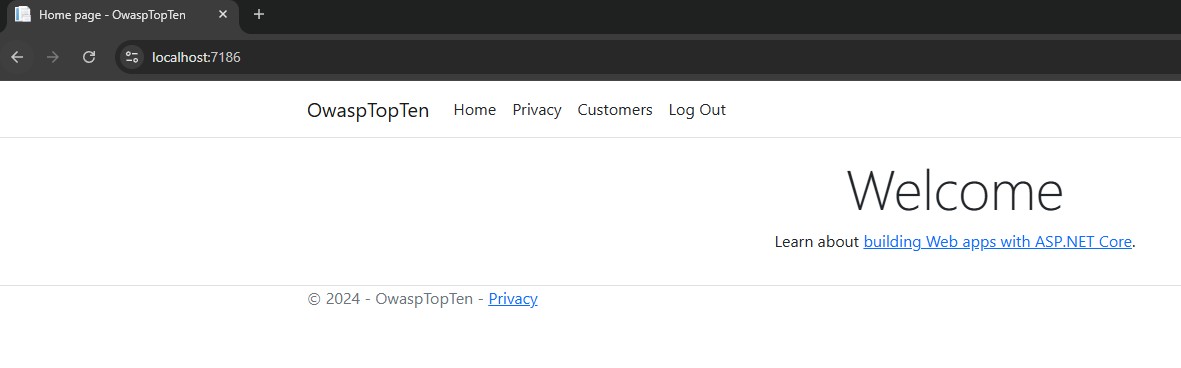
Application Home Page
To get my exception code to be hit, I have to access a page that attempts to connect to the database. I’ll do that by clicking on the Customers link to make the application attempt to read the customers from the database. Visual Studio reports an exception after clicking the link.
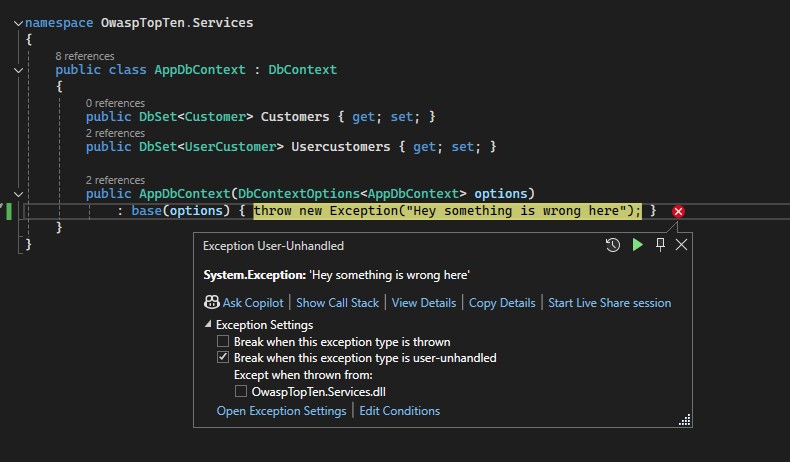
Unhandled Exception Reported by Visual Studio
I’m going to pretend this is running on a server. To simulate that, I’ll just click the run/play button in Visual Studio to let the application continue executing. I get an error page in the browser.
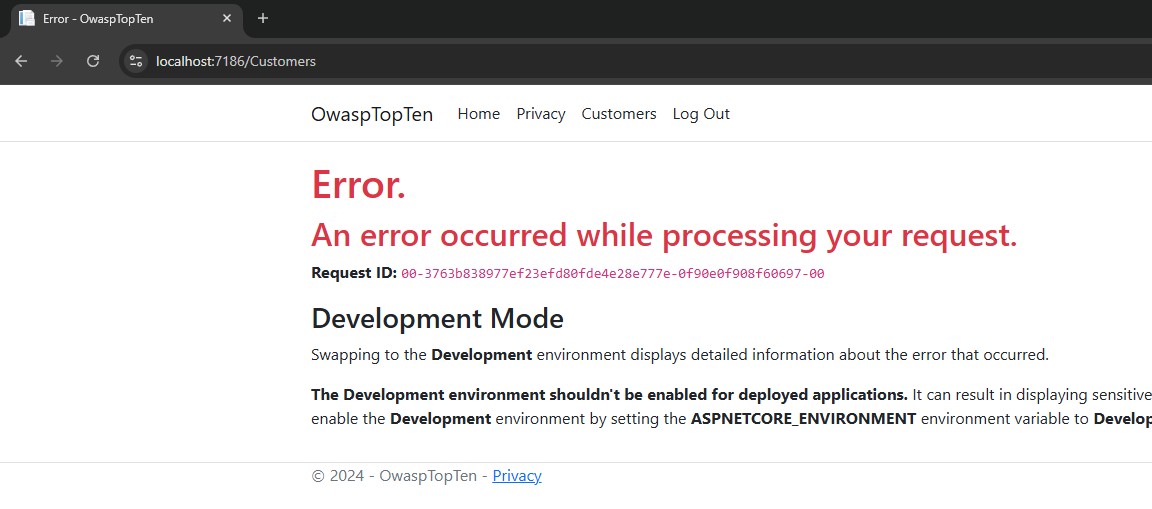
Application Error Page
Running in a development environment, we would typically see the details of the actual exception that occurred in the browser. This is for convenience when running an application locally. It’s outside the scope of this post, but the application is configured to return a generic error page when an unhandled exception occurs while running in a production configuration. This is best practice in production systems to prevent error responses from potentially returning sensitive information to the browser, where it might be intercepted by an attacker. The page shown here is just an example. It still includes more detail than what a real production system would actually want to return to the user.
So, because we’re not seeing the exception details, which is usually the case on a server, we can’t and shouldn’t rely on the browser output to tell us what is wrong. This is the type of error where the Event Viewer is extremely useful. My local PC is simulating the “server” where the application is running. So, let’s open the Event Viewer and check the Application logs.
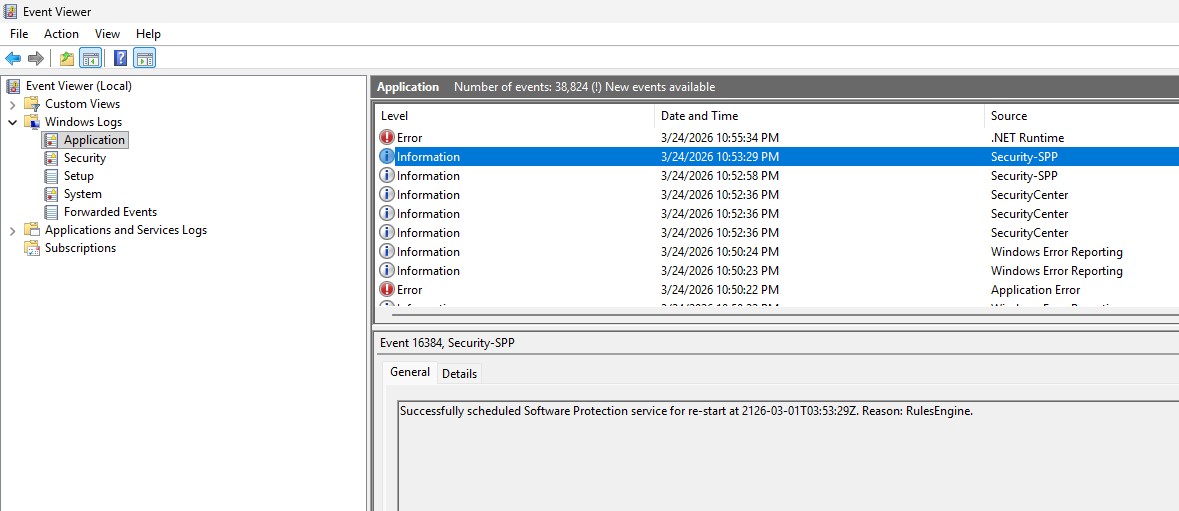
Error in Event Viewer Application Log
There is indeed an error visible in the Event Viewer. I purposefully clicked on the Information log entry just below the error for the above screenshot, just to show what the error looks like and what you might see by default, as the Error log entry itself is not always going to be selected by default when first checking the logs.
We can click on the log entry to see the details of the exception that occurred.
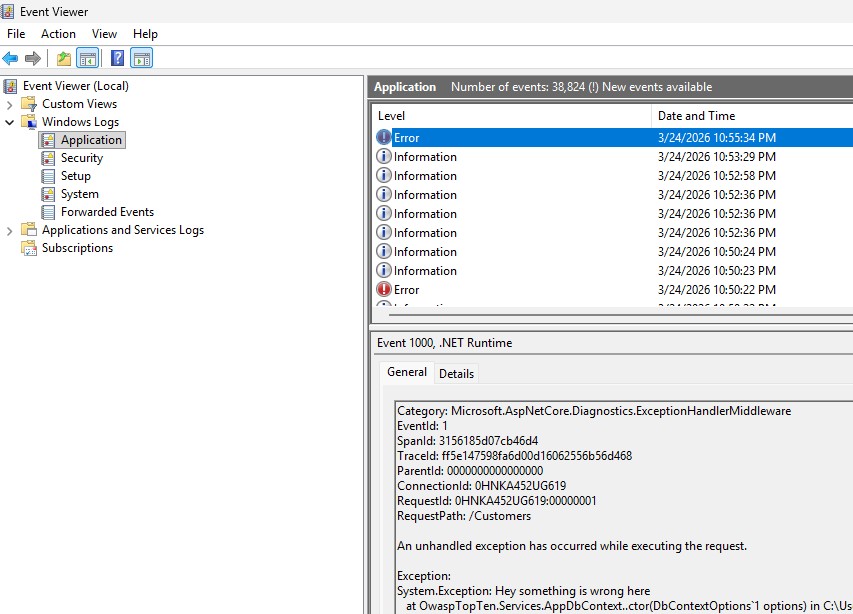
Details of the Error in Event Viewer
The log entry provides a lot of helpful details, such as the RequestPath (/Customers), the Exception message (“Hey something is wrong here”) and the stack trace. This type of information is invaluable when debugging applications running on test or production servers that limit what information is returned in the response to the browser.
This isn’t limited to web applications either. The Event Viewer will typically record any unhandled exception thrown by an application.
In my case, what was happening to me was that I had upgraded from one version of a third-party library to another. Switching branches in version control was causing two conflicting versions of the library DLLs to end up in my bin folder. This was causing an error where the application couldn’t figure out which version of a method to call, causing the application to crash with “The call is ambiguous between the following methods” exception. The application wouldn’t start, and all I was getting in my local environment was a generic 500 server error response page. No logging, no error information in the response (even in development), just a generic error page. The only place I could find the information I needed was in the Windows Event Viewer. The solution ended up being to delete the older version of the library DLLs from the bin folder, which I had to do every time I switched between branches.
The Windows Event Viewer is a tool every .NET software developer or Windows system administrator should have on their list of tools for troubleshooting Windows applications. It’s often the most useful in debugging issues that aren’t caught by custom application logging, such as issues that occur during application startup or unhandled exceptions that occur during application execution.
If your .NET application fails, and you don’t see anything in your logs, check Event Viewer.